Introduction
In the first part of this lesson, we will use DB Browser for SQLite to create a new SQLite table (Students) in our MyUniversity.db database. In the second part, we will show you how to use an SQL statement to create another table (Courses) in the same database.
Create an SQLite table with DB Browser
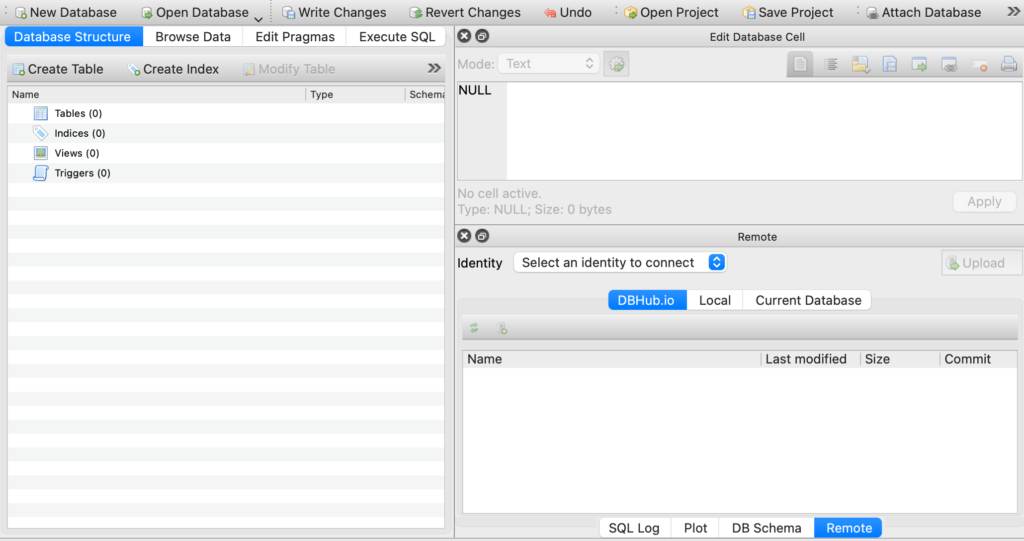
Before an existing database (in our example: MyUniversity.db) can be used, the database file must be opened (Open Database button in the DB Browser toolbar).
After the database has been opened, a table can be added to the database using the Create Table button. When you click the Create Table button, the following input screen appears:
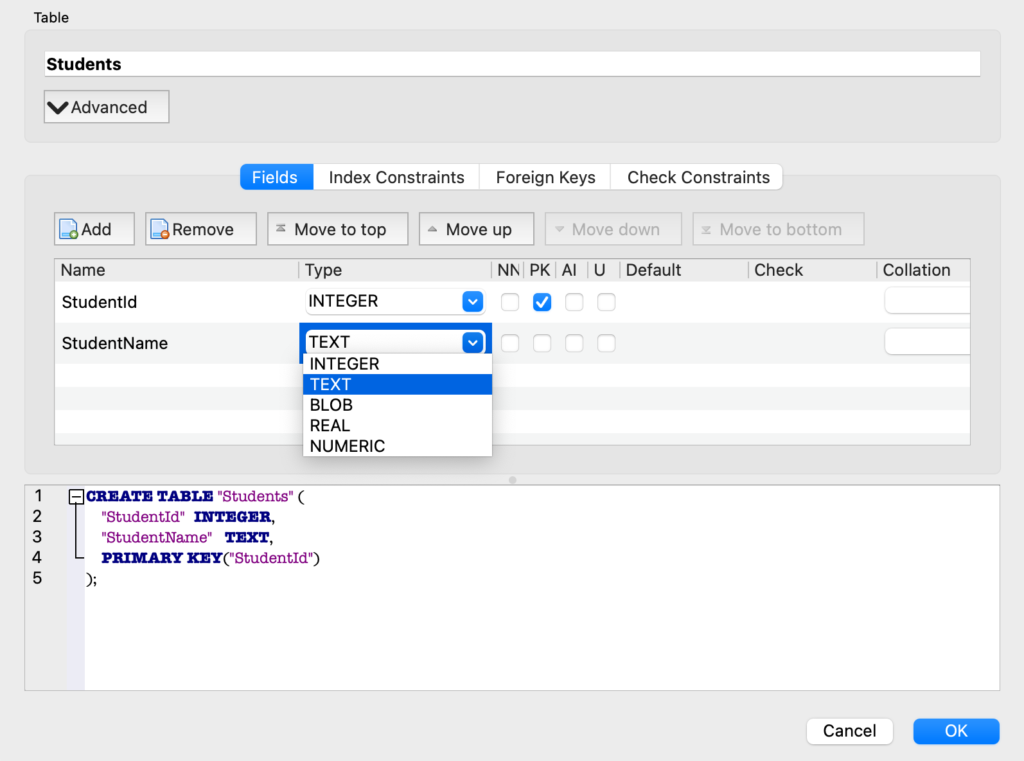
The new table will be named Students. The table consists of two fields: StudentId and StudentName. The StudentId field is defined as an Integer, while the StudentName field is defined as a Text field.
The check mark under PK defines StudentId as the Primary Key of the table. A primary key is a unique, not-null identifier for a row in a table. No two students can have the same StudentId. Other checkboxes can be checked: NN stands for Not Null, AI stands for AutoIncrement, U stands for Unique.
As you fill in the fields, the corresponding SQL statement is automatically built and displayed in the lower part of the screen.
After you click the OK button, the table is created in the database.
Create an SQLite table with an SQL statement
The following SQL statement shows a simplified form of the SQL statement supported by SQLite:
CREATE TABLE [IF NOT EXISTS] table_name (
   column_name datatype [column_constraint]
   [,column_name datatype [column_constraint]]
   ...
);
Elements between square brackets (for instance [IF NOT EXISTS], [column_constraint]) are optional.
IF NOT EXISTS: The optional IF NOT EXISTS clause prevents the table from being created if a table with the same name already exists.
Datatype: A value entered in a column is stored in one of the SQLite storage classes: INTEGER (no decimals), TEXT, REAL (IEEE exponent notation used for decimal data), BLOB (Binary Large OBject, used for binary data such as images and audio).
Column_constraint: the following column constraints will often be used: UNIQUE (U in DB Browser) (column value must be unique in the table), NOT NULL (NN in DB Browser) (a column value must be inserted), PRIMARY KEY (PK in DB Browser) (column value is a unique not-null identifier).
This description is sufficient to compose the SQL statement for creating our second table (Courses ) with the fields CourseId and CourseName:
CREATE TABLE Courses (
   CourseId INTEGER PRIMARY KEY,
   CourseName TEXT
);
The above SQL statement can now be entered and executed in DB Browser.
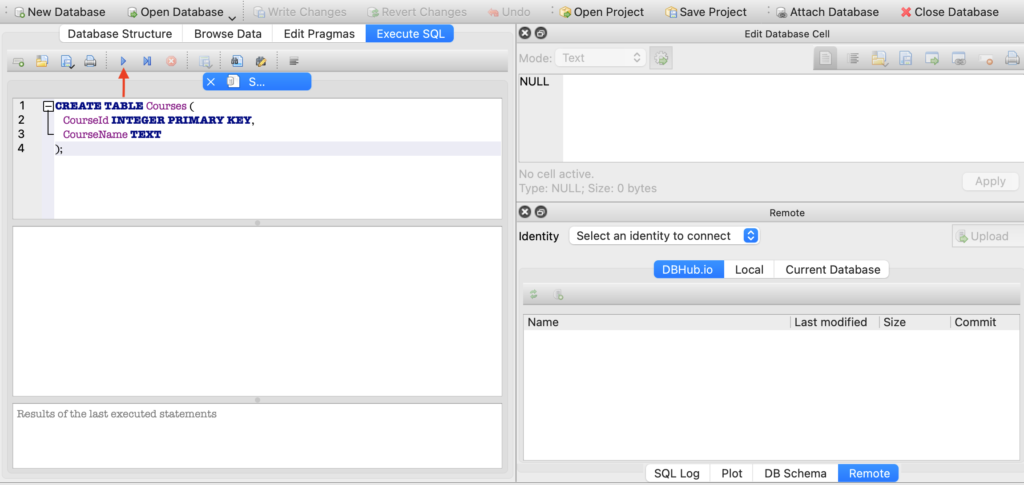
After pressing the Execute SQL button in the toolbar, you can enter the SQL statement. The SQL statement can then be executed by pressing the ▶︎ button (see red arrow in the screenshot above).
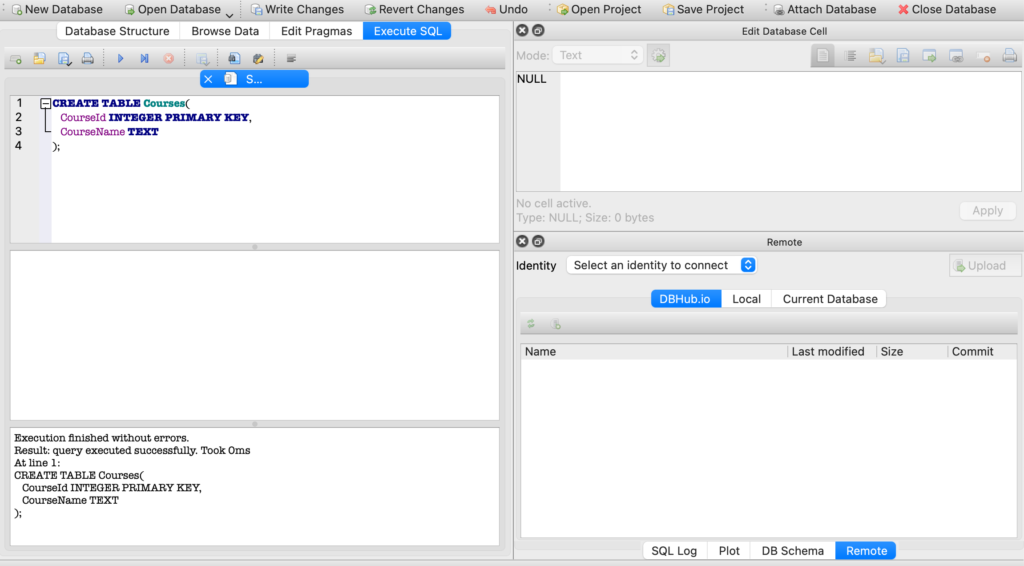
The result of executing the SQL statement is displayed in the lower part of the screen: