
Introduction
In this lesson we will learn how to install SQLite on a computer system and how to create an SQLite database file.
How to install SQLite?
SQLite is already pre-installed on many systems such as Apple Mac, Apple iPhone, Android, etc. In this case installation is not immediately necessary.
For Microsoft Windows computers the installation file must be downloaded from the SQLite website. You can then open the downloaded zip file in a new folder (e.g. c:. To make SQLite accessible from all directories, it is best to add the new folder to the Windows system environment variables (Path).
To verify that SQLite is installed and functioning correctly, enter the following CLI command in the Terminal app:
sqlite3If everything is working correctly, you will see the following prompt sqlite>:
SQLite version 3.39.5 2022-10-14 20:58:05
Enter ".help" for usage hints.
Connected to a transient in-memory database.
Use ".open FILENAME" to reopen on a persistent database.
sqlite>
sqlite3 is the Command Line Interface (CLI) for communicating with the database. sqlite3 accepts SQL statements and passes them to the SQLite database. You can exit sqlite3 by pressing the Control-D key combination.
The CLI is not used very often. Users and developers usually prefer user-friendly apps. A simple internet search immediately yields a range of powerful tools: DB Browser for SQLite, Beekeeper Studio, DBeaver, etc.
It is difficult to express a preference for one of these applications. For SQLite, I usually use DB Browser for SQLite, but for server-based databases, I prefer DBeaver. In this series of lessons, I will use DB Browser for SQLite.
DB Browser for SQLite
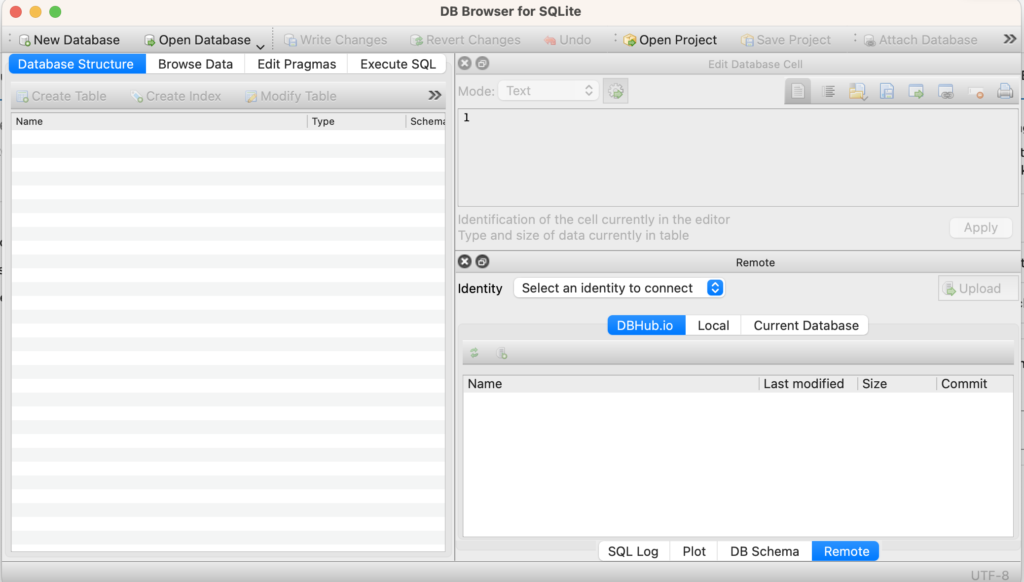
At first glance, the main screen of DB Browser for SQLite seems overwhelming. In this lesson, however, we will only use the New Database button from the toolbar.
The New Database button asks for the name of the database file you want to create (in my example, MyUniversity.db) and the location of this file. After pressing the Save button, an SQLite database file is created.
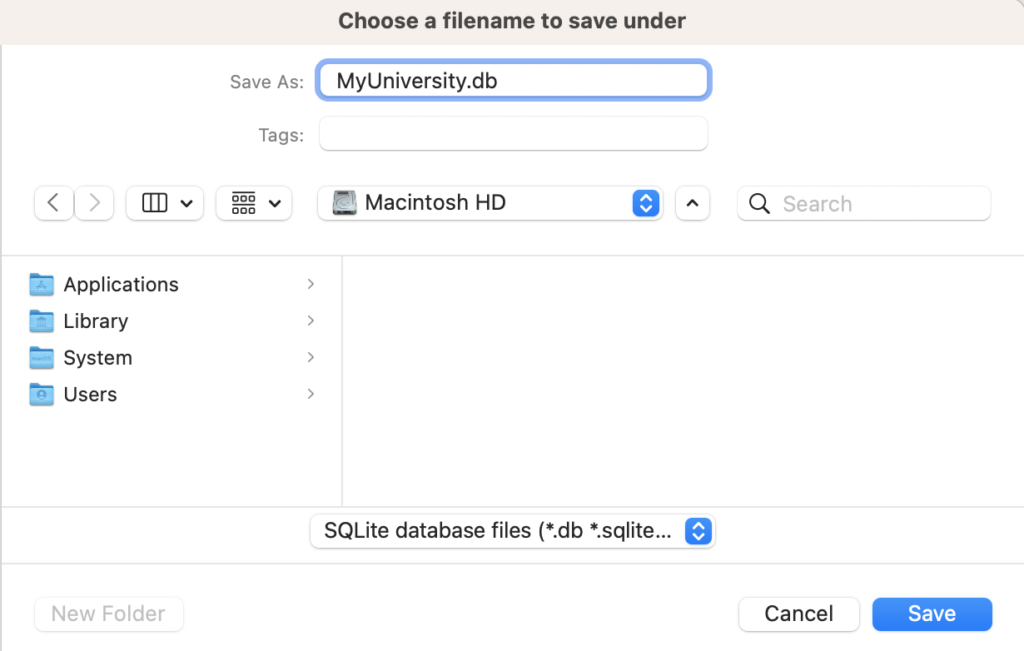
After you have saved the database file, DB Browser will ask you to populate the file with a number of tables. We will postpone this step until the next lesson.