
Introduction
In this lesson, we will learn how to select data from a table. The first part of the lesson shows how data can be accessed using DB Browser. The second part then shows which SQL statements apply.
For this lesson, we’ll be using a new table called Teachers. This table has the following columns:
| Column Name | Column Type |
|---|---|
| TeacherId | Integer (primary key) |
| TeacherFirstName | Text |
| TeacherLastName | Text |
| TeacherFaculty | Text |
The table Teachers will contain the following data:
| TeacherId | TeacherFirstName | TeacherLastName | TeacherFaculty |
|---|---|---|---|
| 1 | Robert | Johnson | Arts |
| 2 | Bert | Lindner | Medicine |
| 3 | Jane | Walters | Arts |
| 4 | Laura | Fosters | Law |
| 5 | Olivia | Masters | Medicine |
Browse data with DB Browser
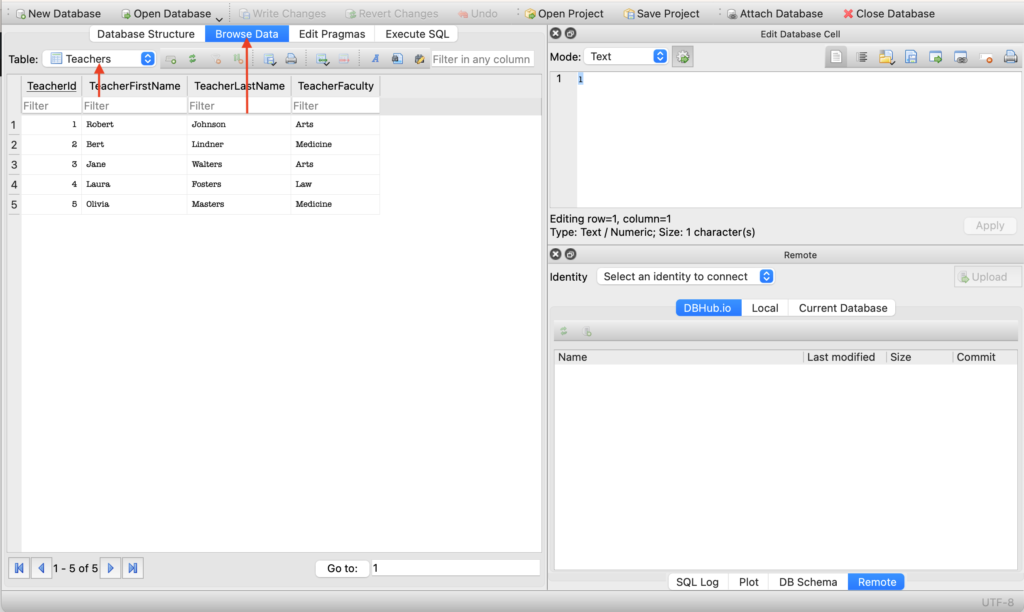
To view all data from a specific table, first select the appropriate table and then press the Browse Data button (see red arrows in the screenshot above). This way, all rows and columns are displayed and you can scroll through the table.
Sort the data
To sort the data in a different way, simply click on a column name at the top (for instance on the column named TeacherLastName).
Filter the data
To search for data in the table, you can use the filter fields. The filter fields at the top of the columns select data in the column based on the filter value entered.
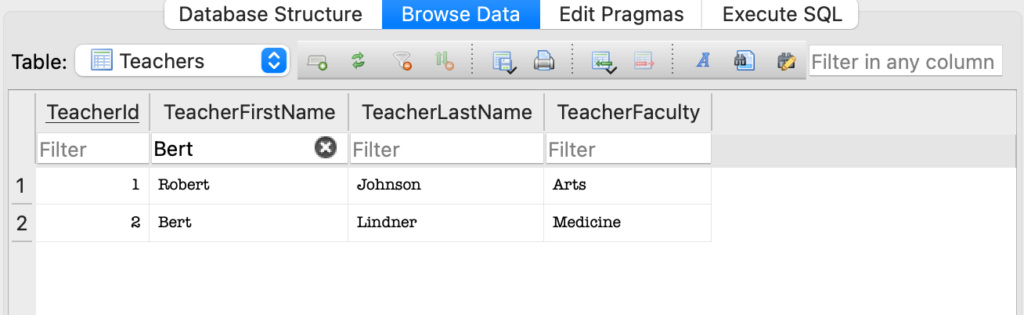
A row is retained if the filter value matches a complete or a partial value in a row of the relevant column. In the following screenshot, the table has been filtered for the first name “Bert.” As you can see, both “Bert” and “Robert” have been selected.
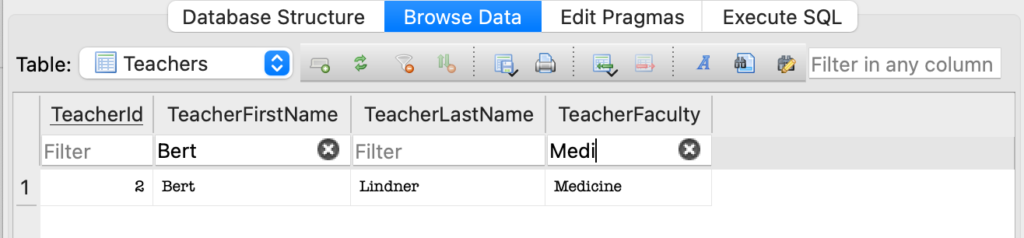
When multiple filters are applied, a row is only retained if all filters are met (AND selection). In the following example, Robert is not selected because he does not belong to the medical faculty.
Browse data with SQL statements
Select all data
The general SQL statement to select all data in a table looks like this:
SELECT [column_name_list|*]
   FROM table_name;
You use an asterisk (*) to select all columns.
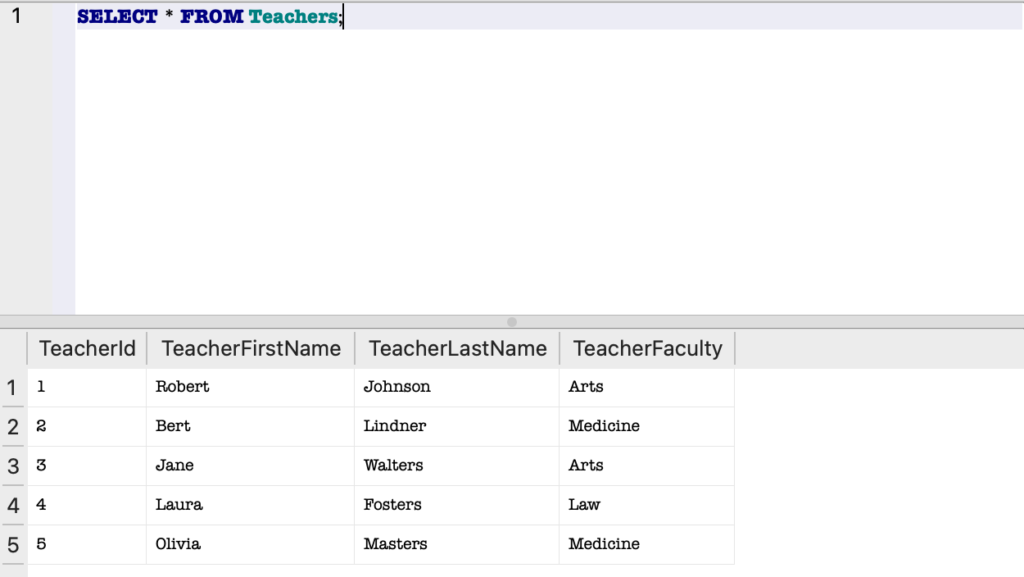
If you only need a few columns, specify multiple column names separated by commas.
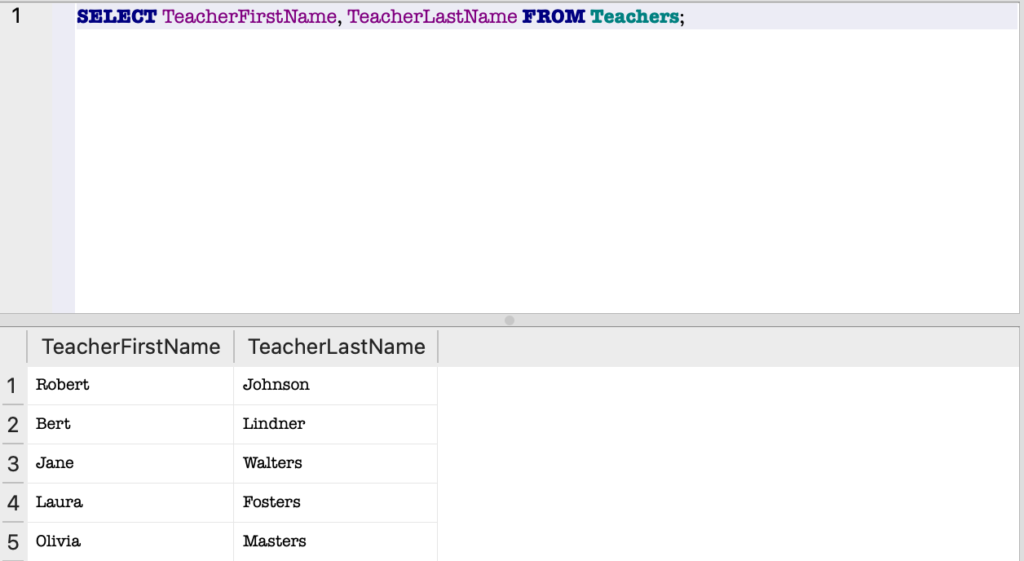
Sort the data
To sort your data, add an optional ORDER BY clause to the SELECT statement:
SELECT [column_name_list|*]
   FROM table_name
   [ORDER BY column_name1 [ASC|DESC]
           [,column_name2 [ASC|DESC]]...];
ASC (ascending) or DESC (descending) are optional keywords. If you do not specify either of these keywords, ascending is the default setting.
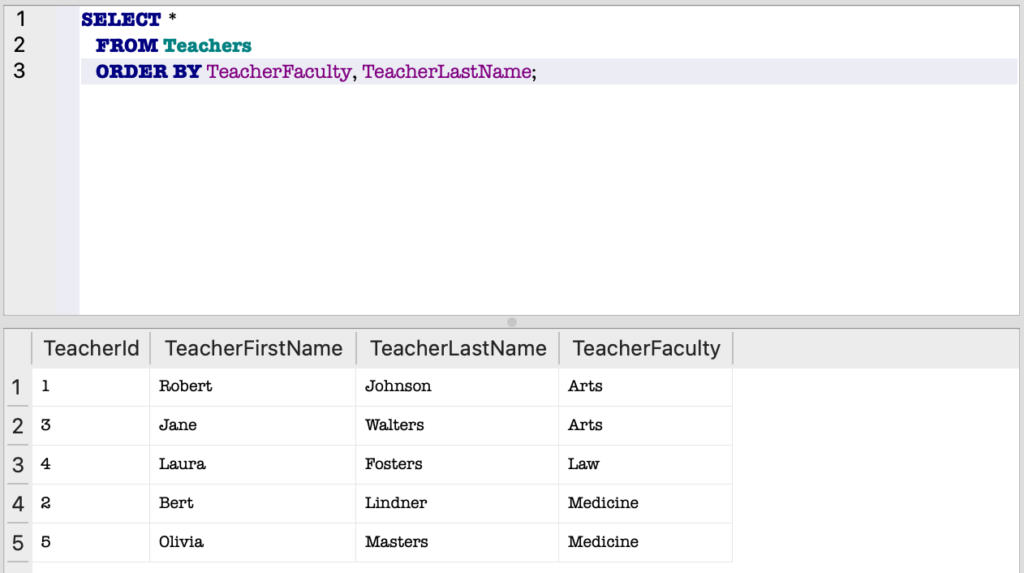
In the following example, the data is first sorted by faculty and then by last name within each faculty. In this case, the teachers are displayed in ascending (ascending is the default setting) alphabetical order within the faculty to which they belong.
Filter the data
To filter your data, add an optional WHERE clause to the SELECT statement:
SELECT [column_name_list|*]
   FROM table_name
   [WHERE conditional_expression];
The conditional_expression defines the rule for filtering the data. In a rule, the left side of the expression is compared to the right side of the expression using a conditional operator. The most important conditional operators are: =, != (not equal), <, <=, >, >=.
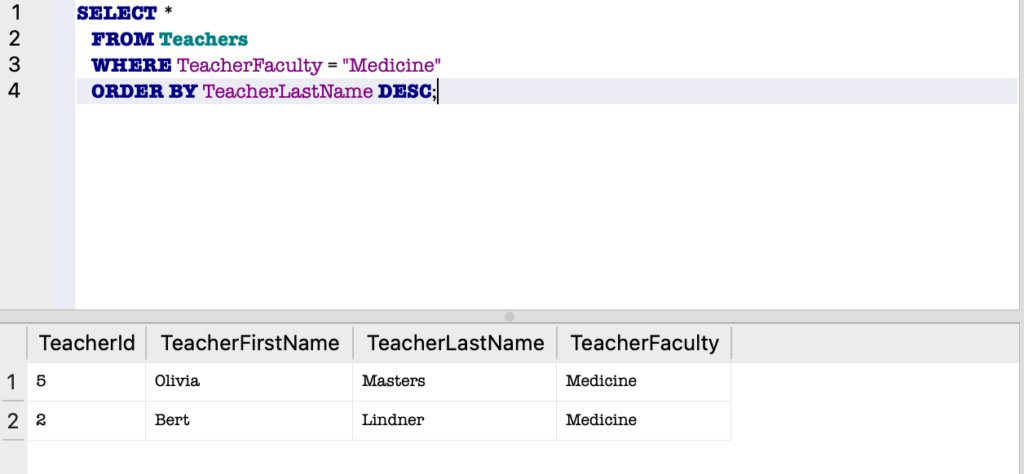
In the following example, all students from the faculty of Medicine are retrieved and sorted in reverse alphabetical order by last name (DESC).
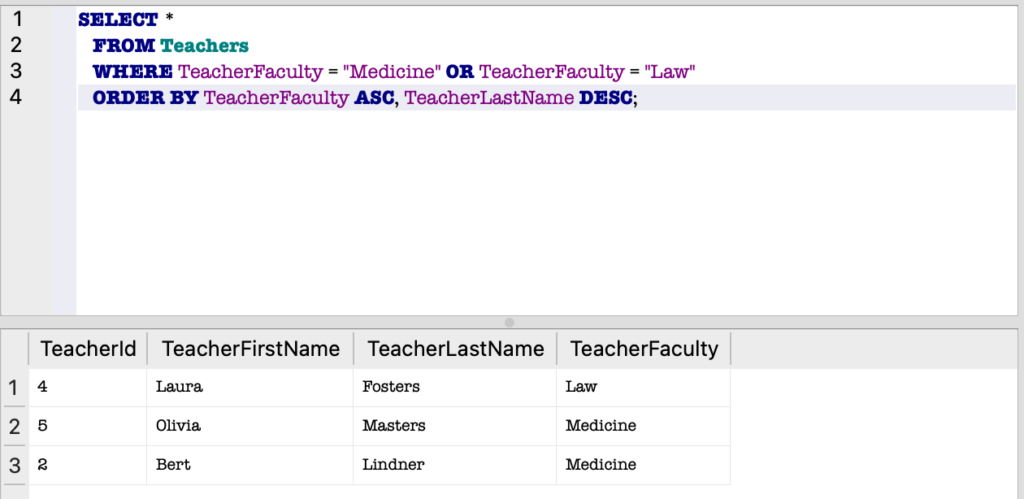
Multiple conditional expressions can be combined using the AND (all conditions must be TRUE) and OR (at least one condition must be TRUE) operators.
In the following example, all students from the medical and law faculty are retrieved and sorted.
Filter data based on patterns
SQLite offers the ability to search for patterns (partial words) in a table. In this case, the search term does not fully match the value stored in a specific row and column. To select data based on a pattern, the LIKE operator must be used.
The following construction shows the general structure of a selection based on a search pattern:
SELECT [column_name_list|*]
   FROM table_name
   WHERE column_name LIKE search_pattern;
In SQLite, two characters are available for constructing search_patterns:
- A percent sign (%): used to refer to any sequence of zero or more characters.
- An underscore character (_) to refer to one single character.
The following examples illustrate how search patterns can be used:
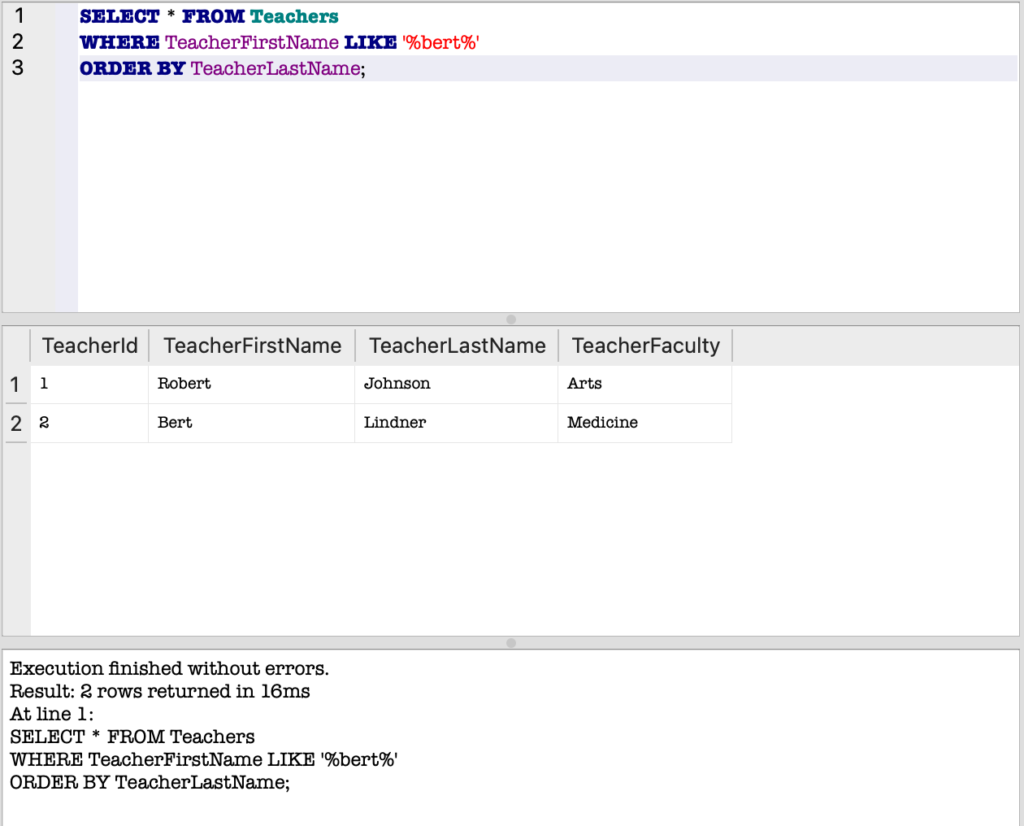
In the previous screenshot we were looking for all teachers with the letters ‘bert’ in their first name. The possible characters before the search pattern “bert” are irrelevant(LIKE ‘%bert%’), and the possible characters after the search pattern “bert” are also irrelevant (LIKE ‘%bert%’). In the example, the teachers with first names Bert and Robert were selected.
If you are unsure about the spelling of the faculty name “Medicine” (is it “medecine” or “medicine”?), you can use the underscore character:
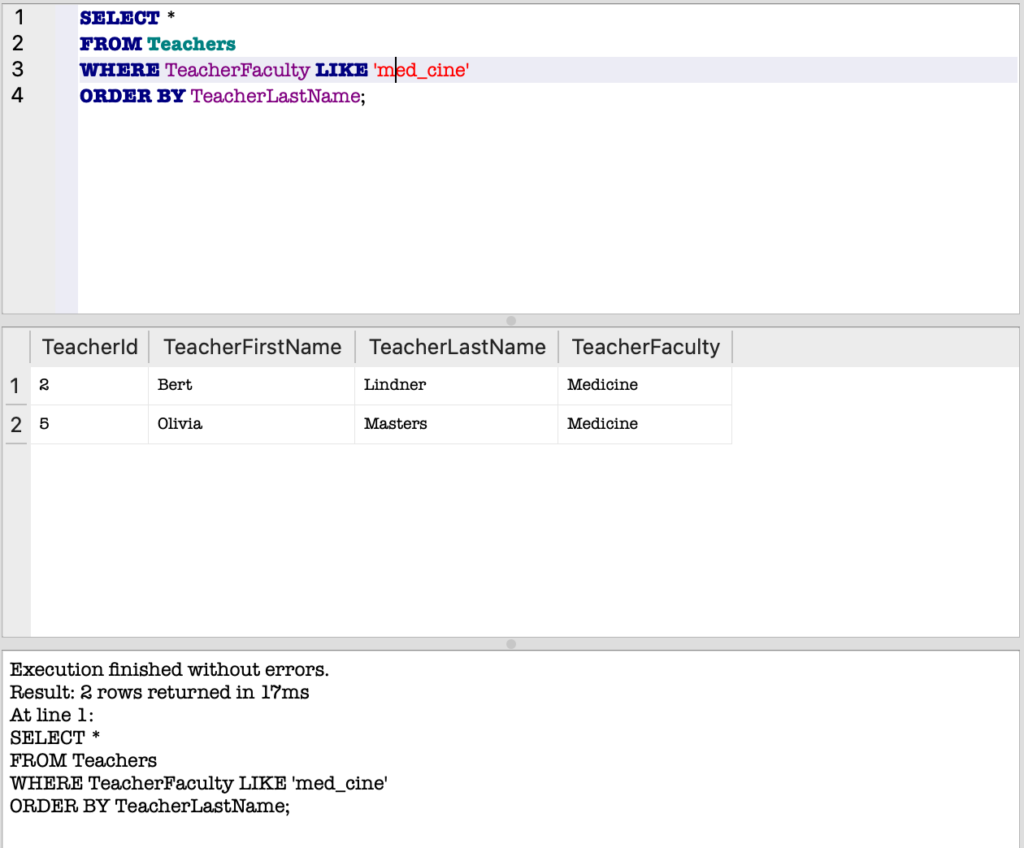
The pattern LIKE ‘med_cine’ indicates that the letter in the fourth position of the search pattern is irrelevant.